
Phishing
Email Abuse
If you suspect an email delivered to your inbox may be malicious, fraudulent, or phishing:
Report Using PhishNotify
PhishNotify is only available in Outlook (computer/mobile apps and web access) for @olemiss.edu accounts.
- Do not reply, open any attachments, or click on any links.
- While the message is selected, click the PhishNotify "Submit Email" button in your email client.
Outlook for Mac/Windows

PhishNotify is accessible on the Home tab in the Outlook desktop application when an email is selected. To report a suspicious email, click the Submit Email button that has a red silhouette of a fish with a hook in the middle.
After reporting, a sidebar will open on the right with your submission status. The message will be moved to your junk folder.
Note: This add-on is not currently available if you are using the "New Outlook" for Mac. In this case, report it using the web/mobile options listed below.
Outlook 365 Web Access
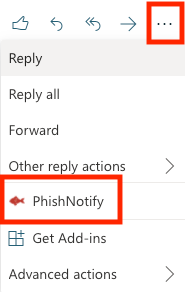
PhishNotify is available in the web-based version of Outlook by clicking the three dots (…) on the top-right of the message body. To report a suspicious email, select PhishNotify (red fish icon with a hook) near the bottom of the resulting menu.
After reporting, a sidebar will open on the right with your submission status. You will have the option to move this message to your junk folder.
Outlook for Android/iOS
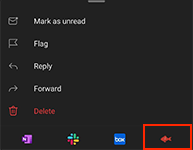
PhishNotify is found in the official Outlook mobile app by clicking the three dots (⋮) on the top-right of the message body. To report a suspicious email, select the red fish icon with a hook at the bottom of the resulting menu.
After reporting, a sidebar will open on the right with your submission status. You will have the option to move this message to your junk folder.
Note: You must be using the official Outlook app available in the Apple App Store (iOS) or Google Play Store (Android) to access PhishNotify on a mobile device.
After Reporting
- After submitting the message for analysis, you can move it to the junk folder (or leave it) and continue handling other messages as you normally would.
- UM IT Security will be in contact if the submitted message poses a risk. Otherwise, submitted messages that do not pose a risk may not receive a reply.
Report Original Message with Full Headers
If you are using an email client other than Outlook (i.e. Gmail for @go.olemiss.edu accounts), you will need to report suspicious messages with full headers by following these steps:
- Do not reply, open any attachments, or click on any links.
- Forward the email as an attachment or send the headers to abuse@olemiss.edu. Email headers contain important details about a message and how it gets to your computer. For example, they are useful in determining the true sender when a "from" address may have been spoofed.
Gmail
Google Gmail (copy/paste to send):
- Click the three dots in the top-right corner of the message.
- Click Show Original toward the bottom of the options menu.
- Copy/paste all header information into the email you wish to send.
macOS Mail
macOS Mail (copy/paste to send):
- Open the message in the macOS or OS X Mail reading pane. You can also open the email in its own window.
- Select View > Message > All Headers from the menu.
- Copy/paste all header information into the email you wish to send.
After you forward the email or header information to us, delete the message.
Note: Common/bulk/unsolicited spam messages, which are not inherently malicious in nature, do not need to be reported. Instead, these messages should be marked as spam/junk in your email client and ignored. Additionally, messages delivered directly to the junk folder in your email client should not be reported – they have already been successfully detected and diverted from your inbox. If desired, filter rules can be set up within most email clients to block specific senders and prevent these messages in the future.
See our Phishing Tips Below for information on how to identify fraudulent messages and decrease the risks of attacks.
Learn to Identify Phishing
Although phishing emails are becoming more complex and difficult to detect, they are never perfect. There are a few things you can look out for that will help you differentiate between a phishing email and a legitimate one.
The email is sent from a public email address
Look at the sender's email address, as this can help identify if the person is truly who they claim to be. Often, the criminal will use a public email address such as gmail.com. If your bank or colleague is going to email you, it will typically come from a company email account with the company name in the email address. However, sender addresses can also be spoofed.
Strange attachments
If you receive an unexpected email or an email from someone you don't know asking you to open an attachment, do not open it. These attachments can contain malware that can harm your computer and capture your personal data.
The creation of a sense of urgency
Phishing emails often ask recipients to verify personal information, such as bank details or a password. They can create a sense of urgency by warning that your account has experienced suspicious activity or pretending to be someone you know who is in urgent need of financial help.
These are major warning signs. If you are ever unsure, contact the company or person using the contact details you already have for them or that are on their legitimate website.
Never use any contact details or click any links provided in the suspicious email.
Links to unrecognized sites or URLs that misspell a familiar domain name
Phishing emails may ask you to click a link within the email. By hovering your mouse over the link or address (or long pressing on mobile devices), you can see the linked site's true URL.
These URLs can be slightly misspelled or completely different from what you are expecting, so always double-check before you click. Learn how to use the hover/long-press technique.
Poor spelling and grammar
You can sometimes detect a phishing email by the way it is written. The writing style might be different from that usually used by the sender, and it might contain spelling mistakes and poor grammar. However, well-written phishing emails are also common.
Protect Yourself from Phishing
Everyone is susceptible to falling victim to a well-crafted attack, and it is important that we take precautions to decrease the associated risks. Consider the techniques below as part of your overall security strategy.
Be cautious about opening attachments or clicking on links in emails
Even your friends' or family members' accounts could be hacked. Files and links can contain malware that can weaken your computer's security.
Do your own typing
If a company or organization you know sends you a link or phone number, don't click or call it directly. Use your favorite search engine to look up the website or phone number yourself.
Even though a link or phone number in an email may look legitimate, scammers can hide the true destination.
Make the call if you're not sure
Do not respond to any emails that request personal or financial information. Phishers use pressure tactics and prey on fear.
If you think a company, friend, or family member really does need personal information from you, pick up the phone and call them yourself using the number on their official website or in your address book, not the one in the email.
Turn on two-factor authentication
For accounts that support it, two-factor authentication requires both your password and an additional piece of information to log in to your account.
The second piece could be a code sent to your phone or a random number generated by an app or a token. This adds protection even if your password is compromised.
As an extra precaution, you may want to configure a backup authentication method in case your primary method, such as a phone, is unavailable.
Back up your files to an external hard drive or cloud storage
Back up your files regularly to protect yourself against data loss from viruses or a ransomware attack.
Keep your security up to date
Use security software you trust, and make sure you set it to update automatically.
Report phishing emails and texts
Forward phishing emails to abuse@olemiss.edu and to the organization impersonated in the email.
Your report is most effective when you include the full email header, but most email programs hide this information. To ensure the header is included, search the name of your email service with "full email header" in your favorite search engine.
View recently reported phishing emails and texts
We post recently reported malicious, fraudulent, and phishing emails for awareness and to help users in the UM community stay safe by identifying them.
See the frequently updated Malicious, Fraudulent, & Phishing Messages list.